In this article, you will be able to learn how to manage the Speakers Feature
- Accessing Speakers Feature
- How to manually add new speaker profile
- How to import speakers profile
- How to add profile photo to speaker
- Manage categories
- Assign categories
- Speaker Settings
- Delete Speaker from list
Accessing Speakers Feature
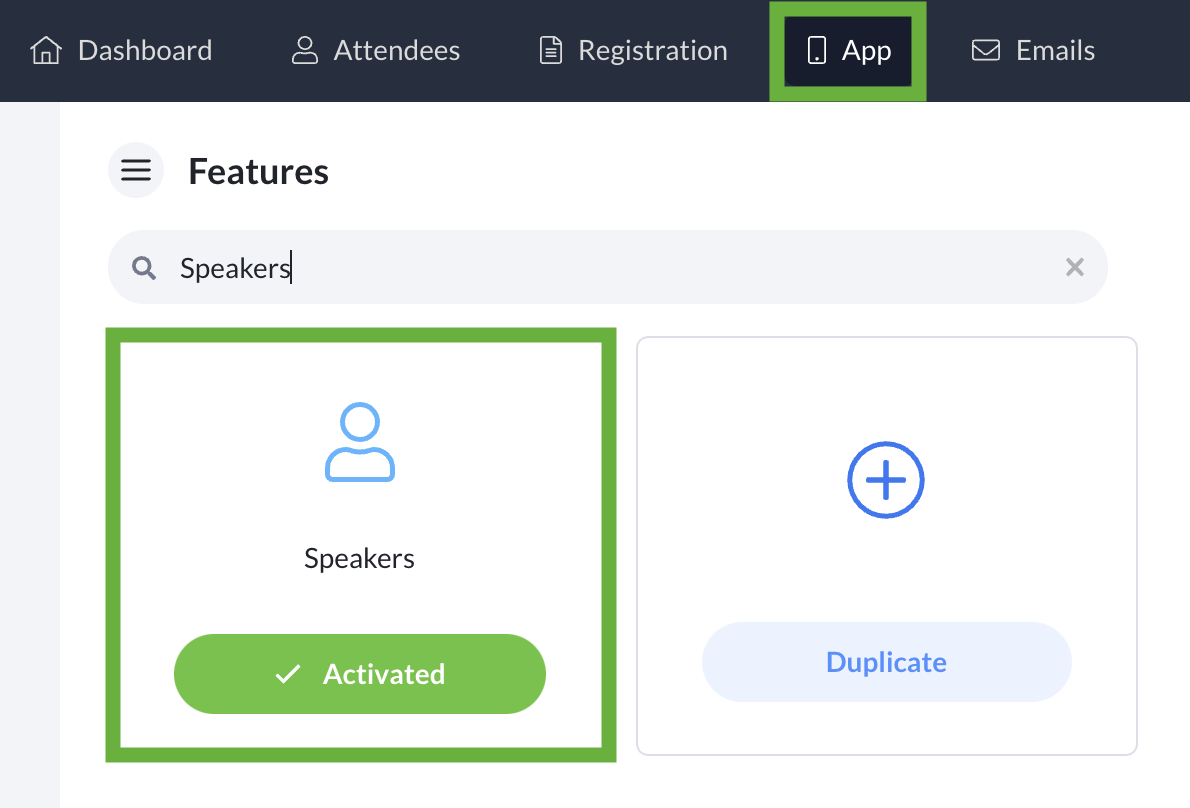
- From the Admin Panel, select App.
-
Search and select the Speakers feature.
-
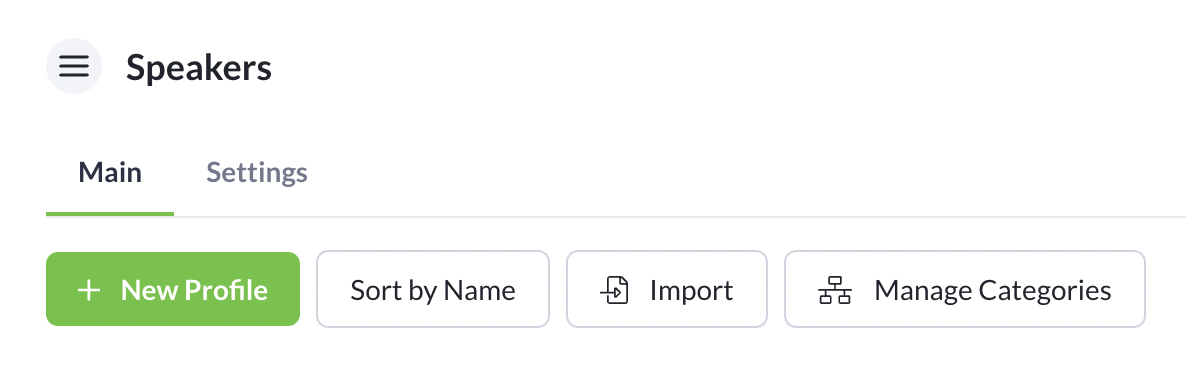
On the Main Speakers tab, you can access various options to manage your Speakers feature
How to manually add new Speaker Profile
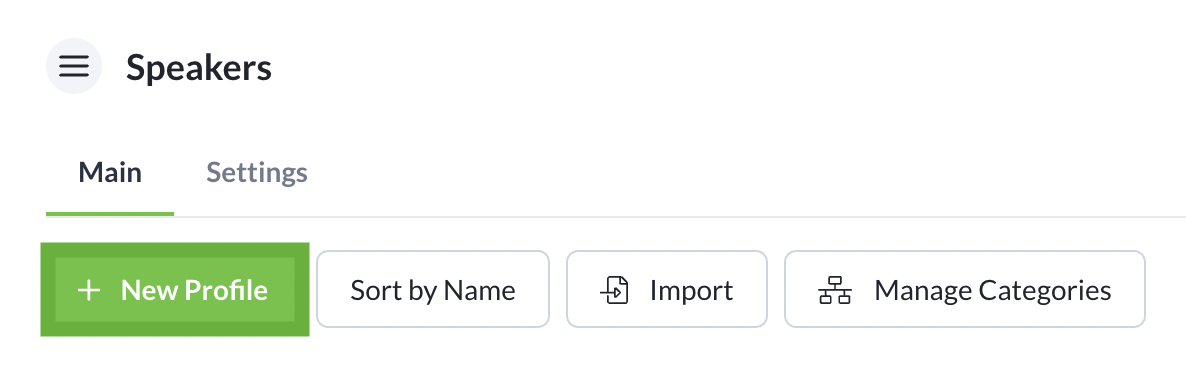
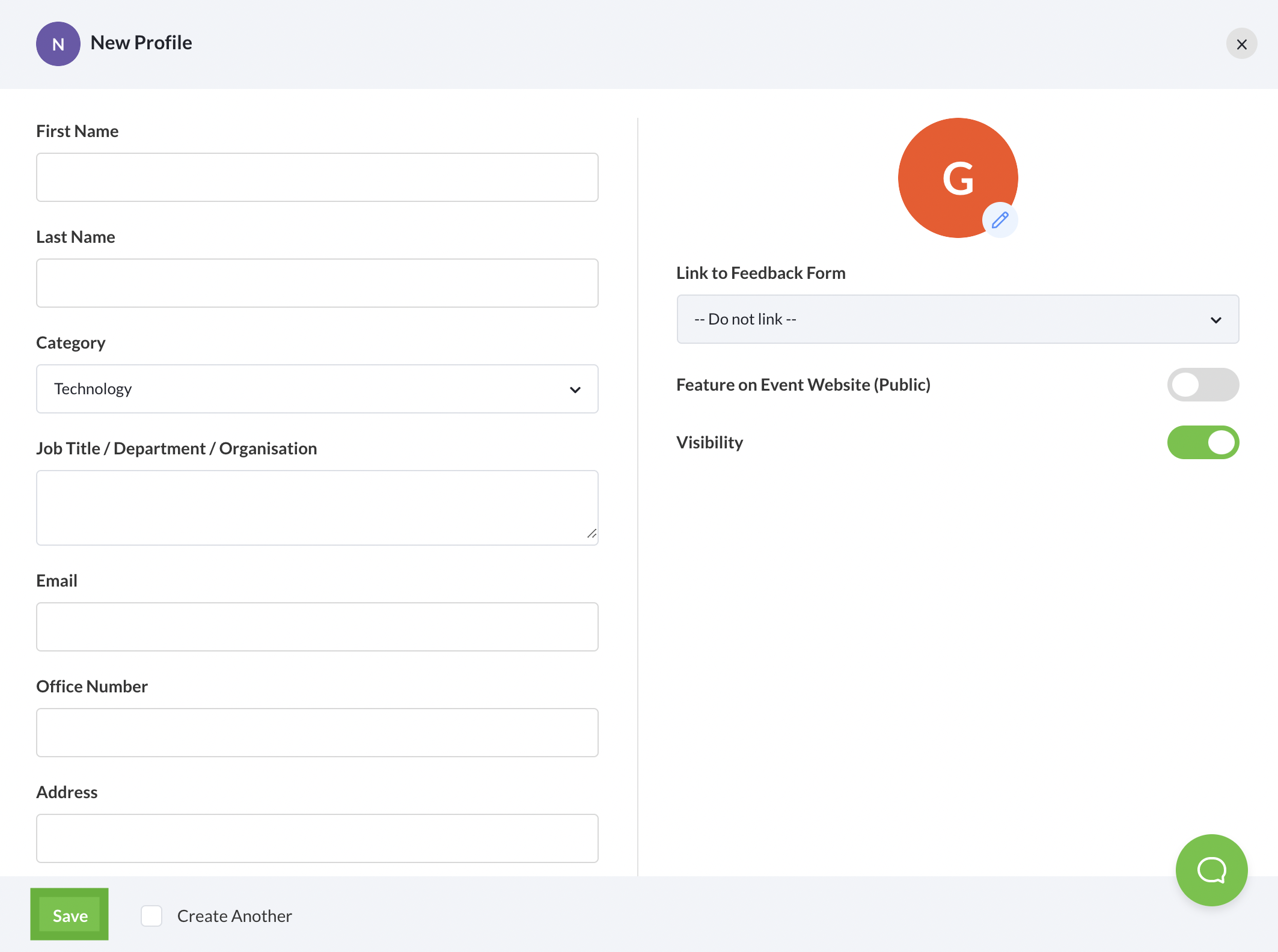
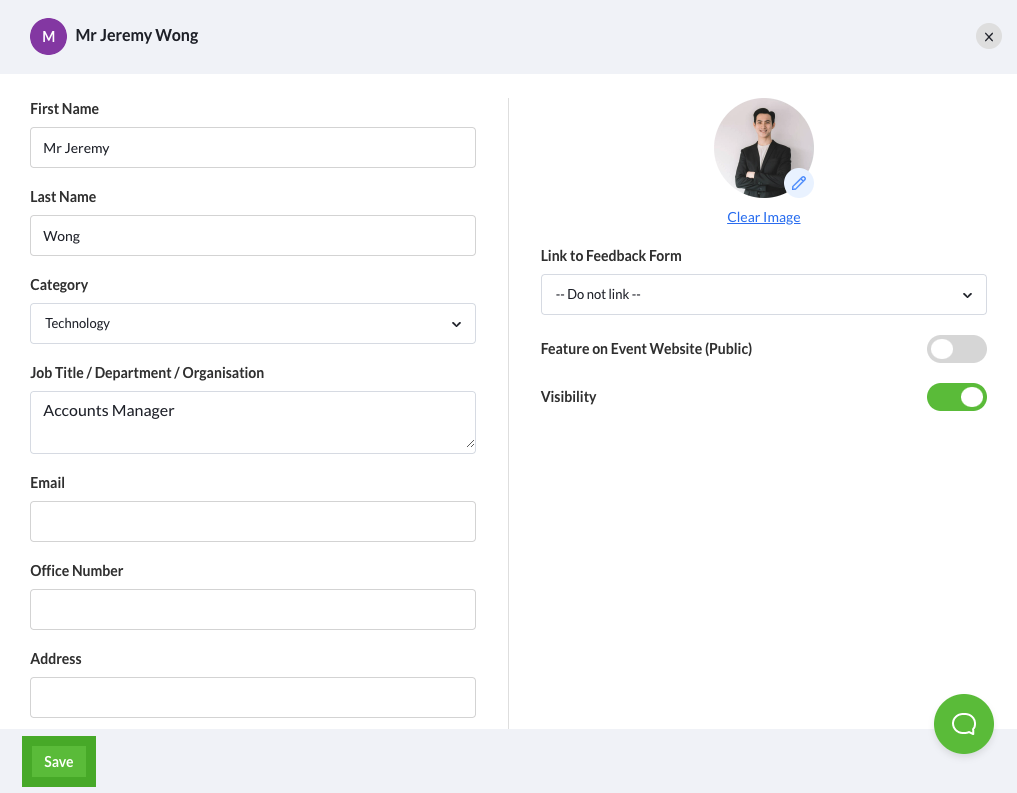
- Click on the, "+ New Profile" button
- At the popup, complete necessary fields including Speaker Biography/Description on the speaker's profile. Include a profile image and toggle visibility Feature on event website or visibility to enable speaker profile access and display on the event website or the virtual platform.
- Click Save.
How to Import Speakers Profile
For a faster way to accumulate your speaker list to your event, you can conveniently import a speaker list based on the excel format provided on the admin panel.
- Click Import and download the excel template
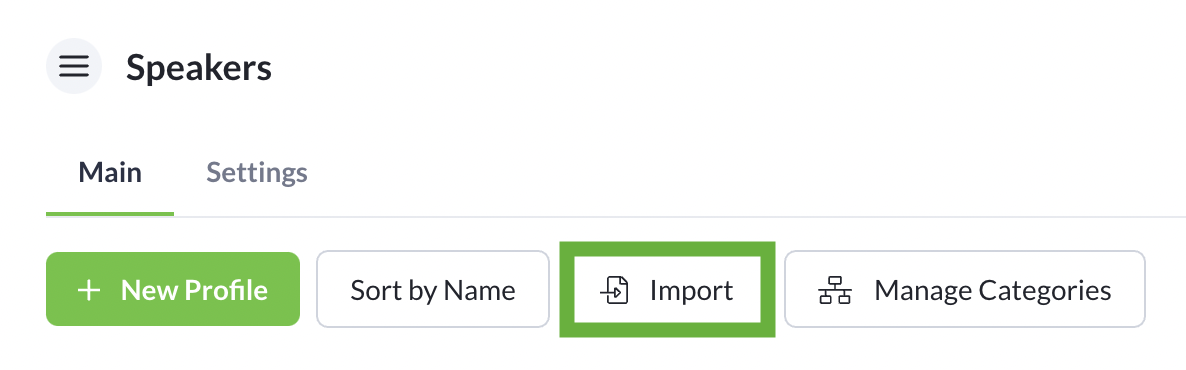
- Fill in the speaker information on the relevant columns and save the speaker excel sheet on your device.
- Click Import button and select the speaker excel sheet to import speaker profiles.
Note: Profile pictures require manual uploads from the backend admin panel. 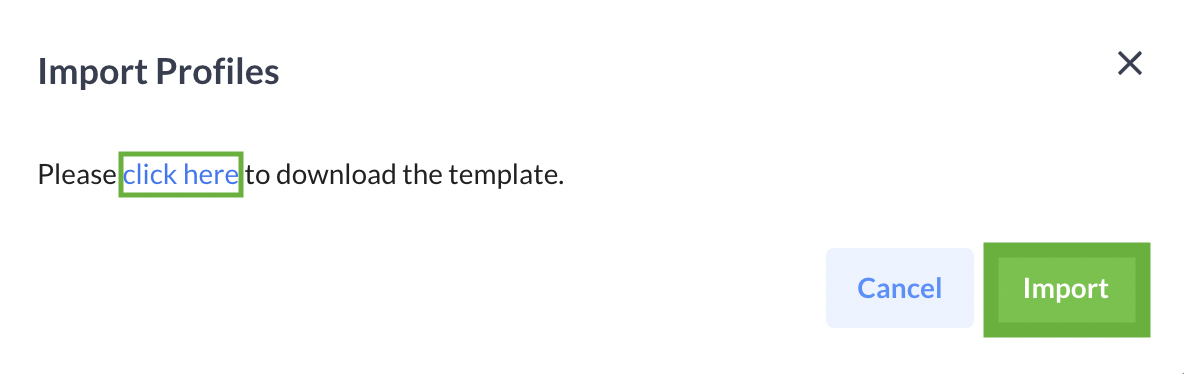
How to add profile photo to speaker
- Select a Speaker to edit

- Click on the pencil button

- Select image from your folder ➔ Crop image and click Save
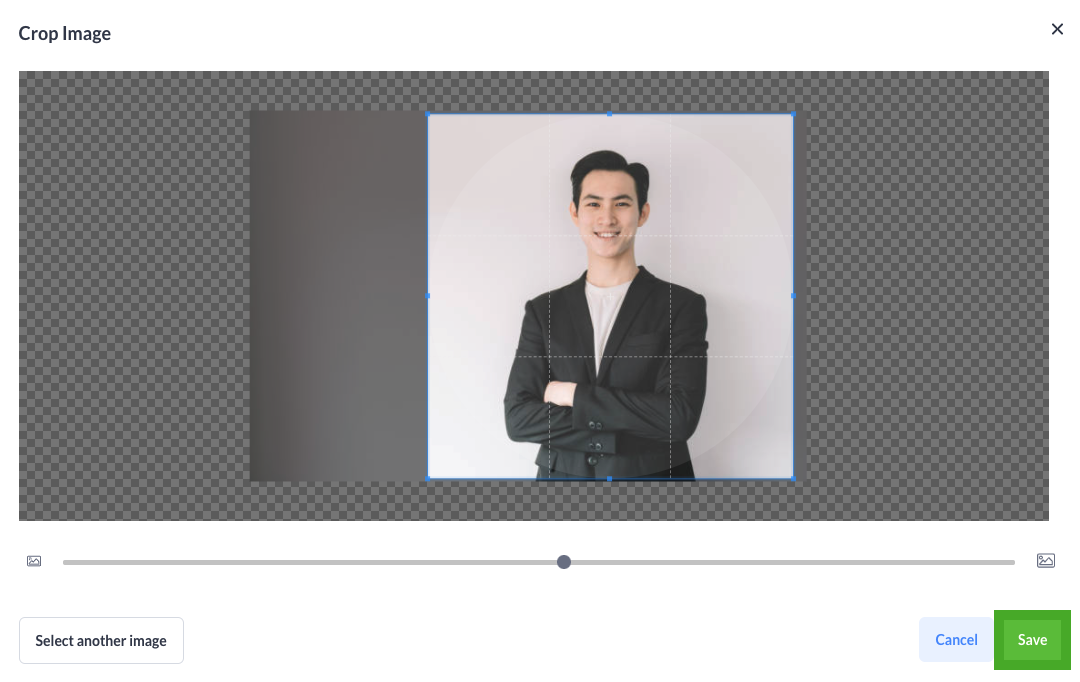
- Click Save to close edit
Manage Categories
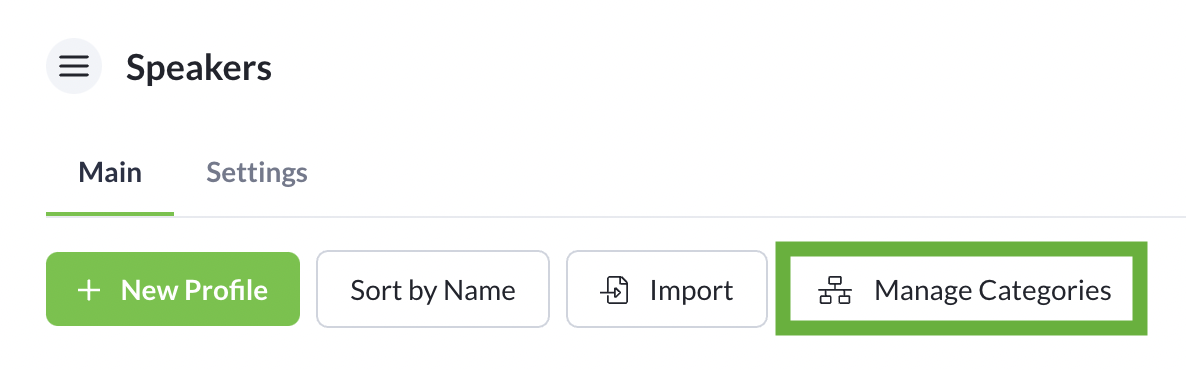
- Click on, "Manage Categories"
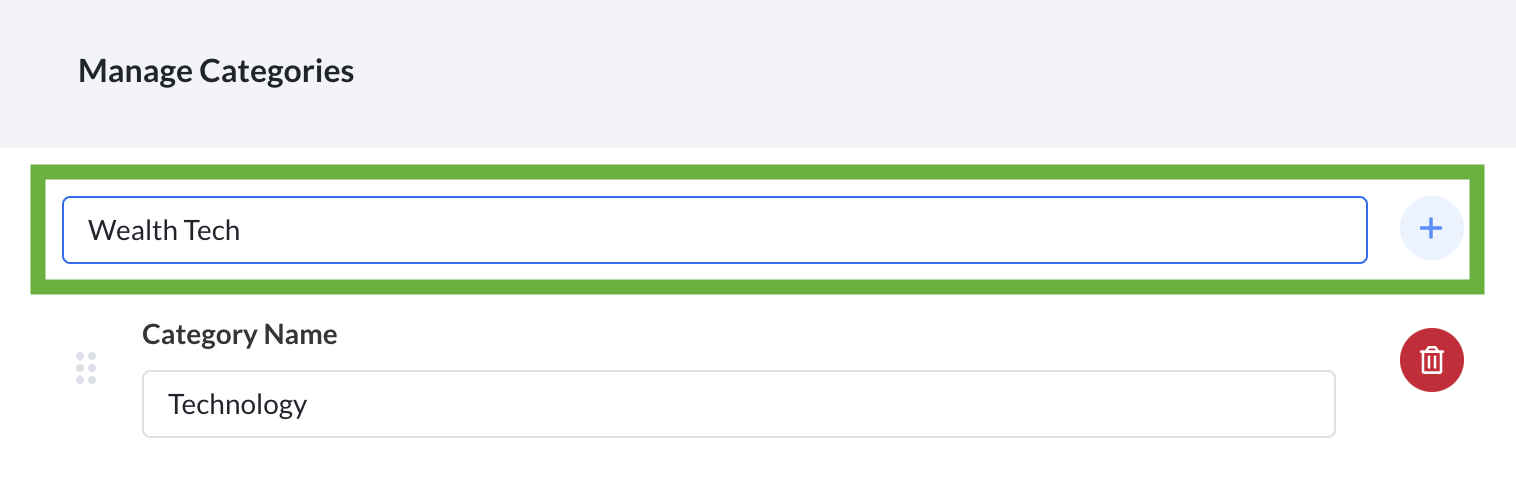
- Insert Category Name in the field and click the, "+ button" to add. Categories will be automatically saved
Assign Categories
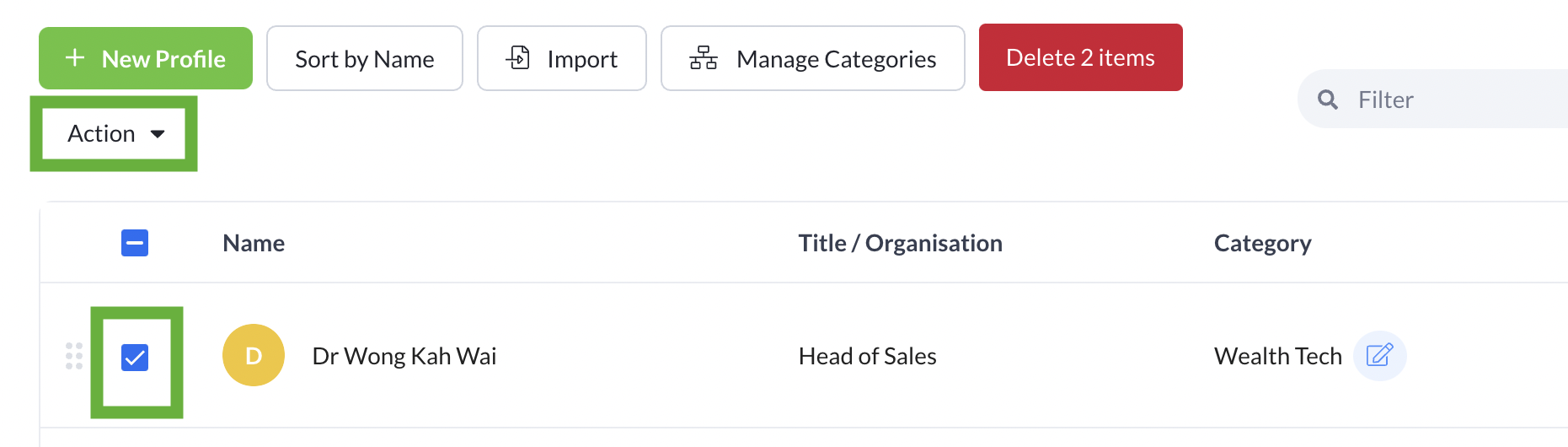
- On the Speakers admin panel, check the box of the speaker(s) and click on the action button.
- From the dropdown list, assign a category for the selected speaker(s). Category will be reflected accordingly.
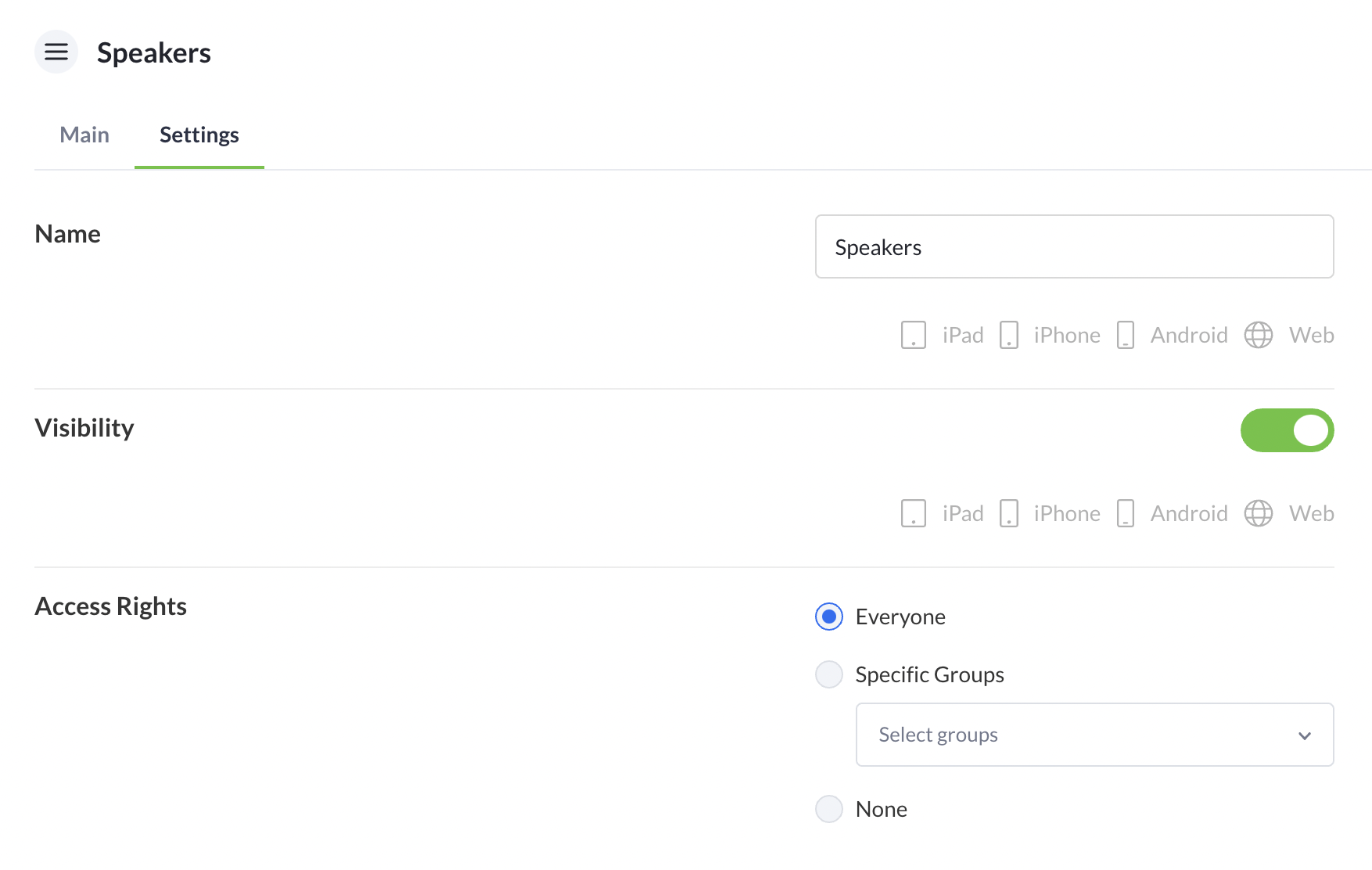
Settings
On the Settings tab, you can manage the Speakers visibility and access rights.
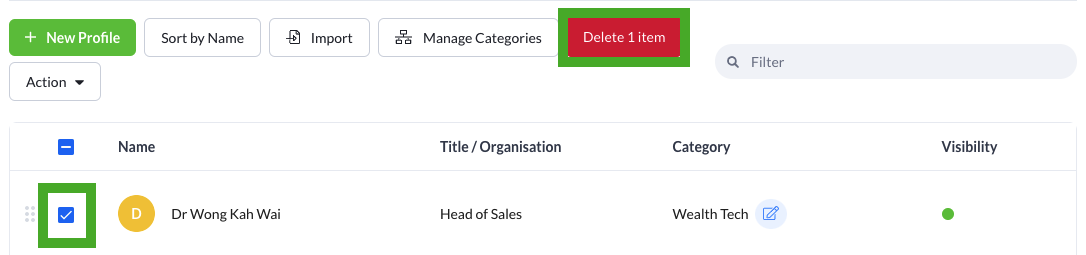
Delete Speaker from list
- Select checkbox ➔ Click Red "Delete" button